Git Branch vs Commit: What's the Difference?
Branches and commits are both fundamental to git — but they work in completely different ways. Here's what each one does and why it matters.
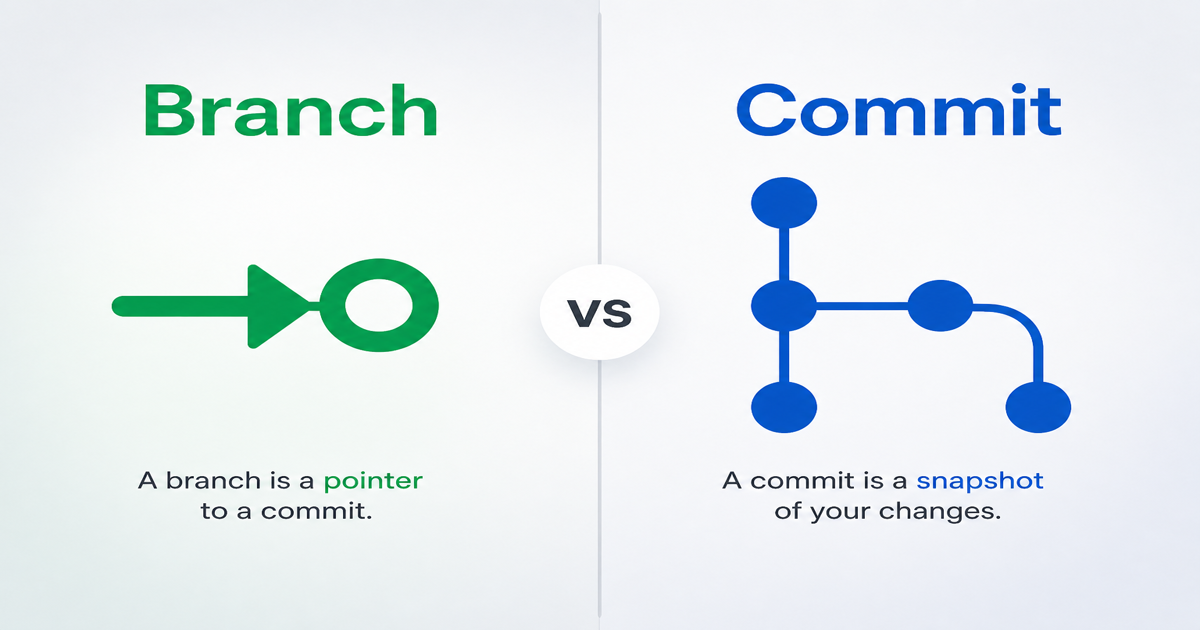
Branches and commits both feel central to working with git — but they're not the same thing at all. One is a permanent record. The other is just a pointer. Understanding the difference clarifies how git actually works.
This guide explains branches versus commits in plain language. No invented claims — just literacy.
What a Commit Is: A Snapshot
A commit is a snapshot of your code at a specific moment in time. Think of it as a save point in a video game.
What's in a commit:
Key point: Commits are immutable. Once created, they don't change. If you "change" a commit (with git commit --amend or git rebase), you're actually creating a new commit with a new hash.
Want to understand commit hashes better? Check out Git Commit Hashes at a Glance.
What a Branch Is: A Movable Pointer
A branch is just a lightweight pointer to a commit. That's it.
When you run git branch feature, git creates a file containing one commit hash. That file is the branch. It points to a commit. When you make a new commit on that branch, the branch pointer moves forward to the new commit.
What's in a branch:
Key point: Branches are mutable. They move as you commit. Deleting a branch just removes the pointer — the commits themselves remain (unless they're orphaned and garbage-collected later).
The Core Difference: Permanent vs. Temporary
| Commits | Branches |
|-------------|--------------|
| Permanent snapshots of code | Movable pointers to commits |
| Identified by immutable hashes | Identified by user-chosen names |
| Contain actual file data | Contain only a commit reference |
| Deleting a commit is dangerous | Deleting a branch is safe if merged |
| Form the history graph | Navigate the history graph |
Mental model:
Think of commits as the chapters in a book, and branches as bookmarks.
How Branches Move (and Commits Don't)
When you're on a branch and run git commit:
Example:
# You're on 'main' pointing to commit abc123
git commit -m "Add login feature"
# Git creates commit def456 with parent abc123
# Branch 'main' now points to def456
The commit abc123 didn't change. The branch pointer moved.
What Happens When You Delete a Branch
Deleting a branch removes the pointer, not the commits.
If the branch is merged:
git checkout main
git merge feature
git branch -d feature
The commits from feature are now reachable from main. Deleting the feature branch just removes the label. The commits are safe.
If the branch is NOT merged:
git branch -D unmerged-feature
The commits become orphaned — not reachable from any branch. Git will eventually garbage-collect them (after 30 days by default). They're not instantly deleted, but they're no longer accessible through normal git commands.
The takeaway: Deleting a branch is low-risk. Deleting commits is rare and risky.
HEAD: Where You Are Right Now
HEAD is git's way of tracking your current location.
Usually, HEAD points to a branch, which points to a commit:
HEAD → main → commit abc123
When you run git checkout feature:
HEAD → feature → commit def456
HEAD moved to a different branch. The commits didn't move. The branches didn't move. Only your current location changed.
Detached HEAD state:
If you checkout a commit directly (git checkout abc123), HEAD points to the commit instead of a branch. This is called detached HEAD. You can look around, but commits you make won't belong to any branch unless you create one.
Learn more in our interactive lesson: Git Branch vs. Commit.
Merging: Combining Two Branches
When you merge one branch into another, you're combining their commit histories.
Fast-forward merge:
If the target branch hasn't diverged, git just moves the branch pointer forward. No new commit needed.
# feature is ahead of main by 2 commits
git checkout main
git merge feature
# main pointer moves forward to feature's tip
Three-way merge:
If both branches have diverged, git creates a merge commit with two parents — one from each branch.
# main and feature both have new commits
git checkout main
git merge feature
# git creates a merge commit with parents from main and feature
The merge commit is just another commit. The branches remain as pointers.
Commits Form a Graph, Branches Navigate It
Git's history isn't a line — it's a directed acyclic graph (DAG).
Each commit points to its parent(s). Merges create commits with multiple parents. Branches are entry points into this graph.
Why this matters:
Rebasing: Rewriting History (by Creating New Commits)
When you rebase, you're not moving commits. You're creating new commits.
git checkout feature
git rebase main
Git:
The original commits still exist (temporarily) but are no longer reachable. The branch now points to the new commits.
Why this matters: Rebasing rewrites history by creating new commits. The old commits get garbage-collected eventually. This is why you should never rebase commits that others are working on.
Related reading: What Is a Hash? — understand the cryptographic fingerprints that identify commits.
Common Confusion: "Commits Belong to a Branch"
This is a mental model issue.
Wrong way to think about it:
"This commit is on the feature branch."
Right way to think about it:
"This commit is reachable from the feature branch."
Commits don't "belong" to branches. A commit can be reachable from multiple branches. Branches just point to commits.
Example:
git checkout main
git commit -m "Add feature" # commit abc123 on main
git branch feature # feature also points to abc123
Commit abc123 is reachable from both main and feature. It doesn't "belong" to either.
Practical Implications
Why branches are cheap:
Creating a branch is almost instant — it's just writing a 40-character hash to a file. No copying. No duplication.
Why commits are expensive to change:
Every commit includes its parent's hash. Change a commit, and all descendant commits need new hashes. This is why git rebase and git commit --amend rewrite history — they create new commits.
Why you can safely experiment:
Create a branch, try something, mess it up completely, and delete the branch. The commits go away (eventually). Your main branch is untouched.
Why git never loses history:
Even "deleted" commits stick around in the reflog for 30 days. Operations like git reset --hard move branch pointers, but the commits remain (at least temporarily).
Explore how git stores data: What Is a Hash?
Quick Reference
| Operation | What it does |
|---------------|------------------|
| git commit | Creates a new commit, moves the current branch pointer forward |
| git branch feature | Creates a new branch pointer to the current commit |
| git checkout feature | Moves HEAD to the feature branch |
| git merge feature | Combines histories, may create a merge commit |
| git branch -d feature | Deletes the branch pointer (commits remain if merged) |
| git log | Shows commits reachable from the current branch |
| git reflog | Shows where HEAD has been (includes "lost" commits) |
The Takeaway
Commits are permanent snapshots of your code — the actual history. They're immutable, cryptographically identified, and form a graph.
Branches are movable pointers to commits — navigational tools. They're lightweight, mutable, and safe to create/delete.
Understanding this distinction clarifies how git works: commits build history, branches organize it. When you "switch branches," you're moving a pointer. When you "merge branches," you're connecting commit graphs. When you "delete a branch," you're removing a label — the commits live on.
Related Reading:
*This post is part of Hacking Bits, where we explain how everyday technology works — one bit at a time.*
Related Posts
HTTP vs HTTPS: What Actually Changes
One letter, one protocol upgrade — but the difference between HTTP and HTTPS is bigger than you think.
no-cache vs no-store: What's the Difference?
Cache-Control: no-cache doesn't mean 'don't cache'. Here's what no-cache and no-store actually do, when to use each, and why the names are misleading.
What Is an ETag? A Plain-English Q&A
Common questions about HTTP ETags answered in plain language — fingerprints for cached content, If-None-Match, 304 Not Modified, strong vs weak validators, and how they fit with Cache-Control.