Cookies, localStorage, and Session Storage: Which One When?
A comprehensive guide to browser storage mechanisms — understand cookies, localStorage, and sessionStorage, how they differ, when to use each, and the security implications of your choice.
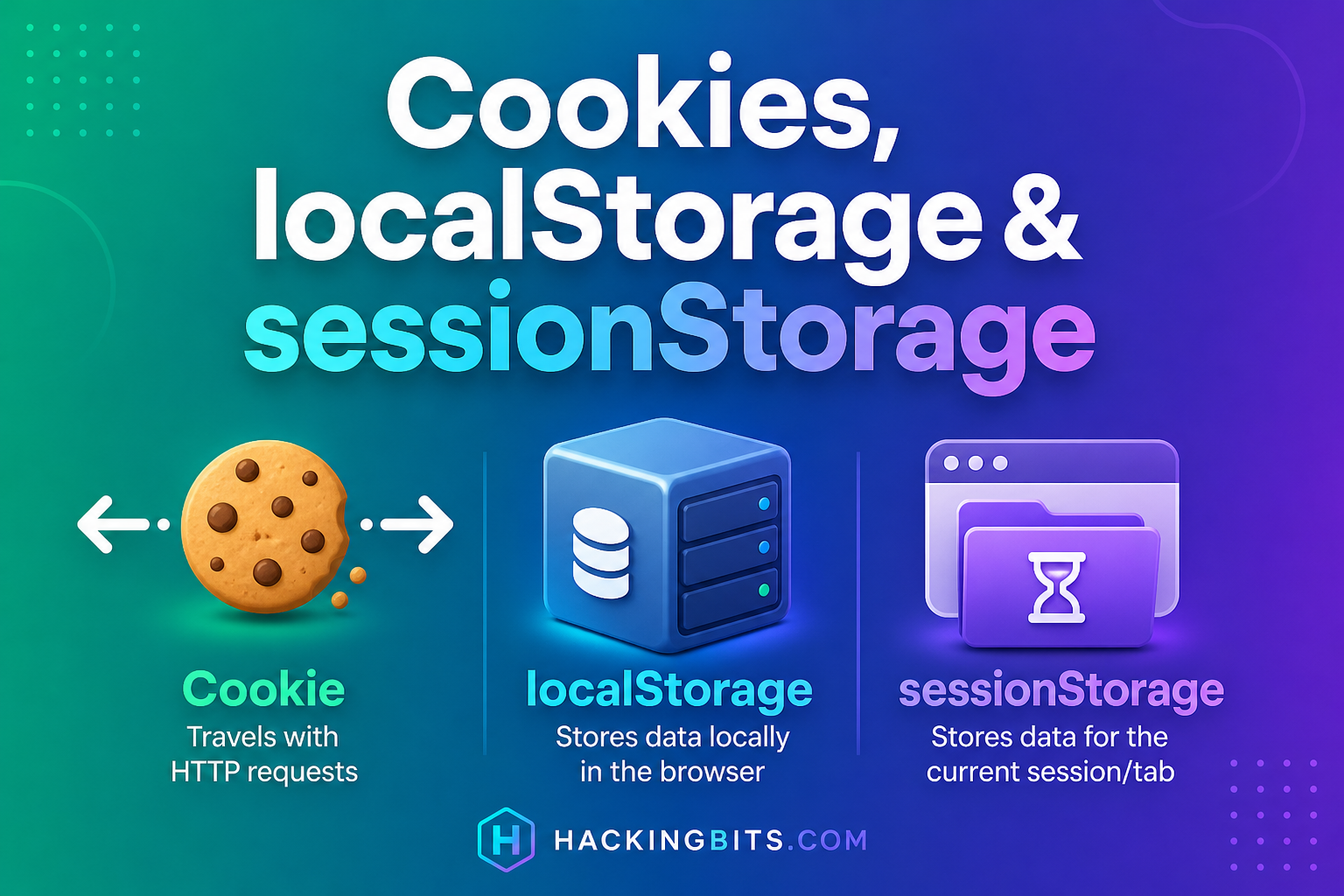
Websites need to remember things about you — your login status, preferences, shopping cart items. But browsers offer multiple ways to store that information: cookies, localStorage, and sessionStorage. Each has different characteristics, trade-offs, and use cases.
This guide explains how each storage mechanism works, when to use which, and the security implications of your choice. No exploit techniques — just literacy.
The Three Storage Mechanisms
Modern browsers provide three primary client-side storage options:
All three store data on the user's device, but they differ in how they work, when they're accessible, and what they're best suited for.
Related: Cookies vs. localStorage covers the basics in 4 minutes.
Cookies: The Original Web Storage
What they are:
Cookies are small text files (max ~4KB per cookie) that servers send to browsers via HTTP headers. Browsers automatically attach cookies to every subsequent request to that domain.
How they work:
When a server responds to your request, it can include a Set-Cookie header:
Set-Cookie: sessionId=abc123; Expires=Wed, 09 Sep 2026 10:18:14 GMT; Secure; HttpOnly
Your browser stores this cookie and automatically sends it back on every future request to that domain:
Cookie: sessionId=abc123
Key characteristics:
Security attributes:
When to use cookies:
When NOT to use cookies:
Learn more about how browsers connect to servers: The Journey of a URL
localStorage: Persistent Client-Side Storage
What it is:
localStorage is a JavaScript API that stores key-value pairs in the browser with no expiration. Data persists even when the browser is closed and reopened.
How it works:
JavaScript code explicitly reads and writes to localStorage:
// Store data
localStorage.setItem('theme', 'dark');
localStorage.setItem('username', 'alex');
// Retrieve data
const theme = localStorage.getItem('theme'); // 'dark'
// Remove data
localStorage.removeItem('theme');
// Clear all
localStorage.clear();
Key characteristics:
When to use localStorage:
When NOT to use localStorage:
Security note:
Any JavaScript running on your page can read localStorage. If an attacker injects malicious script (XSS attack), they can steal everything in localStorage. Never store authentication tokens or sensitive data here unless absolutely necessary and with additional safeguards.
Related: How Web Tracking Works explains browser-based data collection.
sessionStorage: Temporary Tab-Specific Storage
What it is:
sessionStorage is nearly identical to localStorage, but data is scoped to a single browser tab and is cleared when that tab closes.
How it works:
The API is identical to localStorage:
// Store data
sessionStorage.setItem('currentStep', '3');
// Retrieve data
const step = sessionStorage.getItem('currentStep');
// Remove data
sessionStorage.removeItem('currentStep');
Key characteristics:
When to use sessionStorage:
When NOT to use sessionStorage:
Gotcha:
"Session" doesn't mean "until the user logs out" — it means "until the tab closes." Navigating to other pages within the same tab does NOT clear sessionStorage.
Side-by-Side Comparison
| Feature | Cookies | localStorage | sessionStorage |
|---------|---------|--------------|----------------|
| Max size | ~4KB per cookie | ~5-10MB | ~5-10MB |
| Sent to server | Yes, automatically | No | No |
| Accessible via JS | Yes (unless HttpOnly) | Yes | Yes |
| Lifespan | Set by server or session | Until explicitly deleted | Until tab closes |
| Scope | Domain + path | Origin (protocol + domain + port) | Origin + tab |
| Security flags | Secure, HttpOnly, SameSite | None (JS-controlled) | None (JS-controlled) |
| Best for | Authentication, server needs | Preferences, offline cache | Temp UI state, multi-step forms |
When to Use Which: Decision Tree
Use cookies when:
Use localStorage when:
Use sessionStorage when:
Use none (just in-memory JavaScript variables) when:
Related concepts: CORS in Plain Language explains cross-origin security for storage and requests.
Security Considerations
XSS (Cross-Site Scripting) Attacks
Both localStorage and sessionStorage are vulnerable to XSS. If an attacker injects malicious JavaScript into your page, they can read all stored data.
Mitigation:
CSRF (Cross-Site Request Forgery) Attacks
Cookies automatically attach to requests, which makes them vulnerable to CSRF attacks — malicious sites can trigger authenticated requests to another domain.
Mitigation:
Third-Party Cookie Tracking
Third-party cookies (from domains you didn't visit) enable cross-site tracking. Advertisers use them to follow you around the web.
What's changing:
Modern browsers are phasing out third-party cookies. Firefox and Safari block them by default. Chrome is in transition. This breaks legacy tracking but improves privacy.
Related reading: How Web Tracking Works
Practical Examples
Example 1: Authentication (Use Cookies)
Why cookies:
The server needs to verify your identity on every request. Cookies automatically attach, and HttpOnly prevents JavaScript theft.
// Server sets cookie (Node.js/Express example)
res.cookie('sessionId', 'abc123', {
httpOnly: true, // JavaScript can't read it
secure: true, // HTTPS only
sameSite: 'strict',
maxAge: 86400000 // 24 hours
});
Never do this:
// DON'T store auth tokens in localStorage
localStorage.setItem('authToken', 'sensitive-token'); // Vulnerable to XSS!
Example 2: Dark Mode Toggle (Use localStorage)
Why localStorage:
User preference that should persist across sessions. Server doesn't need it.
// Save preference
function setTheme(theme) {
localStorage.setItem('theme', theme);
document.body.className = theme;
}
// Load preference on page load
const savedTheme = localStorage.getItem('theme') || 'light';
document.body.className = savedTheme;
Example 3: Multi-Step Form (Use sessionStorage)
Why sessionStorage:
Temporary workflow state that shouldn't persist after the tab closes. Don't want users resuming abandoned forms weeks later with stale data.
// Save progress
function saveFormProgress(step, data) {
sessionStorage.setItem('formStep', step);
sessionStorage.setItem('formData', JSON.stringify(data));
}
// Load progress
function loadFormProgress() {
const step = sessionStorage.getItem('formStep');
const data = JSON.parse(sessionStorage.getItem('formData') || '{}');
return { step, data };
}
// Clear on submission
function submitForm() {
// ... submit logic
sessionStorage.removeItem('formStep');
sessionStorage.removeItem('formData');
}
Example 4: Shopping Cart (Use… It Depends)
Option 1: localStorage (guest users)
Cart persists even if they close the browser and come back later.
localStorage.setItem('cart', JSON.stringify(cartItems));
Option 2: Server-side + cookies (logged-in users)
Cart stored on server, cookie authenticates user. Cart syncs across devices.
Option 3: Hybrid approach
Use localStorage for guests, sync to server when they log in.
Browser Support and Compatibility
All modern browsers support cookies, localStorage, and sessionStorage:
Gotchas:
The Takeaway
Cookies, localStorage, and sessionStorage serve different purposes:
Choose based on:
Security matters: Use HttpOnly cookies for auth, never store sensitive data in localStorage/sessionStorage, and always sanitize input to prevent XSS.
Related Reading:
*This post is part of Hacking Bits, where we explain how everyday technology works — one bit at a time.*
Related Posts
What Is an ETag? A Plain-English Q&A
Common questions about HTTP ETags answered in plain language — fingerprints for cached content, If-None-Match, 304 Not Modified, strong vs weak validators, and how they fit with Cache-Control.
5 Cache-Control Directives Worth Knowing
Understanding max-age, s-maxage, no-cache, no-store, and stale-while-revalidate — how HTTP caching headers control browser and CDN behavior.
no-cache vs no-store: What's the Difference?
Cache-Control: no-cache doesn't mean 'don't cache'. Here's what no-cache and no-store actually do, when to use each, and why the names are misleading.