How to Read an HTTP Status Code Without Panic
A plain-language guide to understanding 2xx, 3xx, 4xx, and 5xx status codes — what they mean, when you see them, and what to do about them.
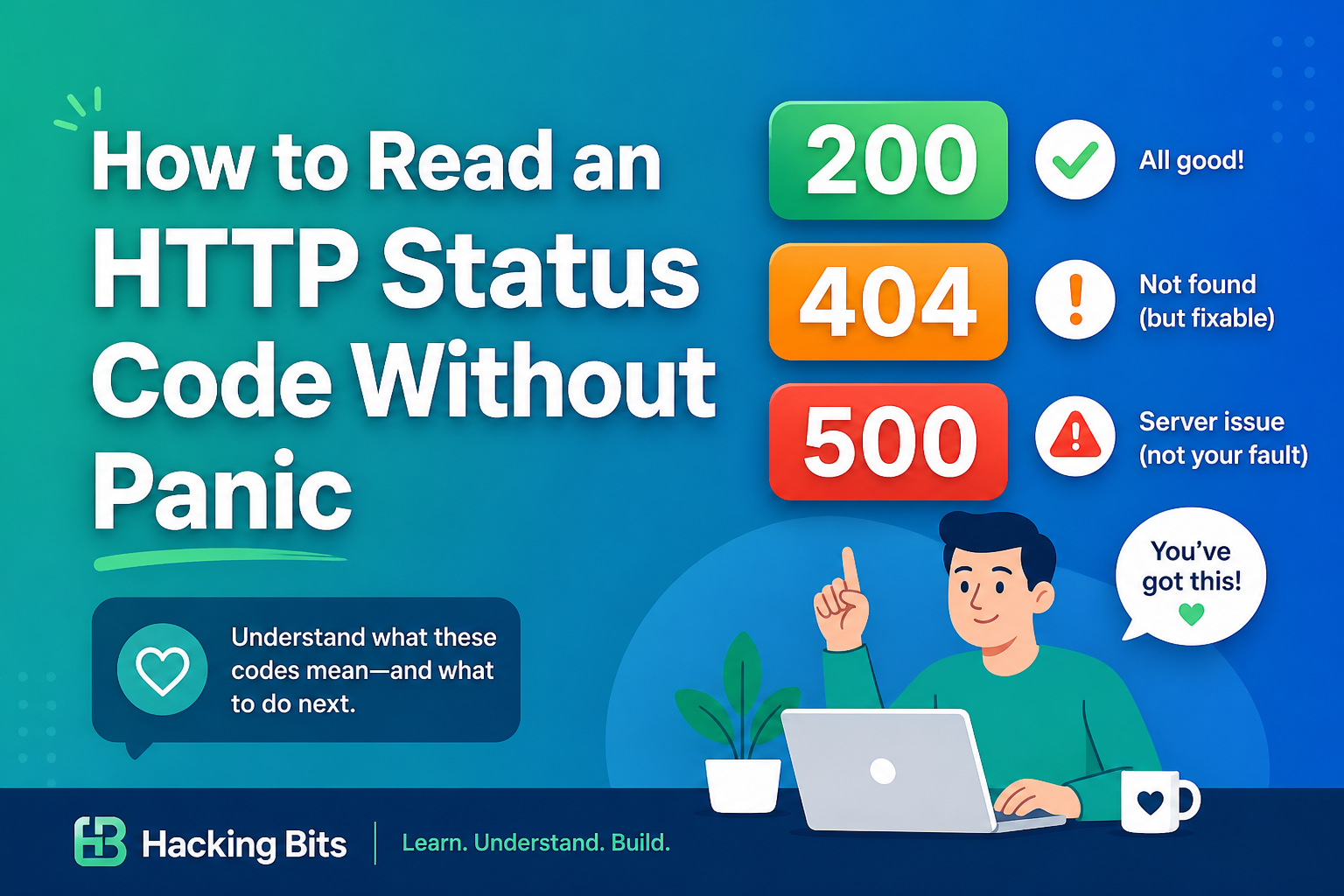
Every time you visit a webpage, your browser and the server exchange messages using HTTP status codes — three-digit numbers that tell the story of what happened. Understanding these codes helps you debug problems, interpret errors, and better understand how the web works.
This guide explains HTTP status codes in plain language. No attack techniques — just literacy.
How Status Codes Are Structured
HTTP status codes are three-digit numbers where the first digit indicates the category:
The remaining two digits provide more specific information within that category. Let's walk through each.
Understanding 2xx: Success Codes
When you see a 2xx code, the server successfully received, understood, and processed your request. Everything went right.
200 OK — The Standard Success
What it means:
The request succeeded. The server found what you asked for and sent it back. For a GET request, you receive the requested resource. For a POST request, you get confirmation that the server accepted your data.
When you see it:
Most successful page loads are 200 responses. You usually don't see this code directly — you just see the webpage. Developer tools (F12 → Network tab) show 200 for successfully loaded resources.
What to do:
Nothing! This means everything worked. The resource loaded correctly.
Related: The Journey of a URL explains what happens during a successful request.
Understanding 3xx: Redirection Codes
3xx codes mean the resource you requested is somewhere else. The server is redirecting you to a different URL.
301 Moved Permanently
What it means:
The resource has permanently moved to a new URL. The server tells your browser: "Don't come back here — use this new address from now on."
When you see it:
What to do:
Your browser follows the redirect automatically. Update bookmarks to the new URL. Search engines transfer SEO value to the new location.
Example use case:
A company rebrands from oldname.com to brandnewname.com. The old domain returns 301 redirects to preserve traffic and SEO.
302 Found (Temporary Redirect)
What it means:
The resource is temporarily at a different URL. The server says: "Go here for now, but the original URL still works and might change back."
When you see it:
What to do:
Your browser follows the redirect. Don't update bookmarks — the original URL is still valid. Search engines don't transfer SEO value for 302s.
Key difference from 301:
301 is permanent (update your links). 302 is temporary (keep using the original URL).
Want more on how URLs connect to servers? Check out What DNS Does.
Understanding 4xx: Client Error Codes
4xx codes mean something was wrong with your request. The server understood you but couldn't fulfill the request because of an issue on the client side (your browser, your permissions, the URL you typed).
400 Bad Request
What it means:
The server couldn't understand your request. The syntax was malformed or invalid.
Common causes:
What to do:
Clear browser cache and cookies. Check the URL for typos. Try a different browser. If it persists, the issue is likely server-side configuration.
401 Unauthorized
What it means:
You need to authenticate before accessing this resource. The server is asking: "Who are you?" before letting you in.
When you see it:
What to do:
Log in. Provide authentication credentials (username/password, API key, bearer token). If you're already logged in, try logging out and back in — your session may have expired.
Common misunderstanding:
"Unauthorized" doesn't mean "forbidden" — it means "not authenticated." You haven't proven who you are yet.
403 Forbidden
What it means:
The server understood your request and knows who you are, but you don't have permission to access this resource. The server is saying: "I know who you are, but you're not allowed here."
When you see it:
What to do:
Check if you're logged in with the correct account. Verify you have the necessary permissions. If you believe you should have access, contact the site administrator. Sometimes 403 is intentional — the resource exists but isn't public.
Key difference from 401:
401 means "not logged in yet." 403 means "logged in, but still not allowed."
404 Not Found
What it means:
The server couldn't find what you requested. The URL doesn't point to anything that exists (anymore, or ever).
Common causes:
What to do:
Check the URL for typos. Try navigating from the homepage. Use the site's search function. Check if the site has a sitemap. If it's a link from another site, notify the site owner of the broken link.
Pro tip:
404 doesn't mean the entire site is down — just that specific resource doesn't exist. The server is working fine; it just can't find what you asked for.
Learn more about status codes: HTTP Status Codes Decoded
Understanding 5xx: Server Error Codes
5xx codes mean the server failed to fulfill a valid request. Your request was fine, but something went wrong on the server's end. It's their problem, not yours.
500 Internal Server Error
What it means:
A generic error message meaning the server encountered an unexpected condition. Something broke, but the server doesn't know exactly what or doesn't want to say.
Common causes:
What to do:
Refresh the page — it might be temporary. Wait a few minutes and try again. Check if the site is down for everyone (use DownDetector or similar). Clear your browser cache. If it persists, the site owner needs to fix it.
For developers:
Check server logs for the actual error. 500 is a catch-all — the real issue is usually logged server-side.
502 Bad Gateway
What it means:
One server (acting as a gateway or proxy) received an invalid response from another server upstream. The server you're talking to couldn't get a valid answer from the server it depends on.
Common causes:
When you see it:
Often during high traffic spikes, deployment issues, or when a backend service crashes. Common with reverse proxies like Nginx, CDNs like Cloudflare, or load balancers.
What to do:
Refresh the page. Wait a few minutes — the backend server may be restarting. Check the site's status page or social media. This is almost always a server-side issue you can't fix.
For context:
Modern websites are often multiple servers working together. 502 means the "front desk" server is up, but it can't reach the "back office" server.
Related reading: 7 Things Your Browser Does Before a Page Loads
503 Service Unavailable
What it means:
The server is temporarily unable to handle requests. It's up and running but can't serve you right now — usually due to overload or maintenance.
Common causes:
When you see it:
Often accompanied by a friendly message: "We'll be back soon!" or "Scheduled maintenance." Unlike 500 or 502, this usually means the downtime is intentional and temporary.
What to do:
Wait and try again later. Check the site's social media or status page for updates. 503 often includes a Retry-After header telling you when to come back.
Key difference from 502:
502 = server tried to reach another server and failed (unexpected). 503 = server is deliberately unavailable (often expected/planned).
How to Check Status Codes Yourself
You don't always see status codes directly — browsers hide successful 200s behind the scenes. Here's how to inspect them:
In the Browser (Chrome, Edge, Firefox)
Using curl (Command Line)
curl -I https://example.com
The -I flag fetches only headers, including the status code.
In the Browser (Safari)
(If you don't see the Develop menu, enable it in Preferences → Advanced)
Quick Reference Table
| Code | Name | Category | Meaning |
|------|------|----------|---------|
| 200 | OK | Success | Request succeeded, here's your content |
| 301 | Moved Permanently | Redirect | Resource permanently moved, update your bookmarks |
| 302 | Found | Redirect | Resource temporarily elsewhere, original URL still valid |
| 401 | Unauthorized | Client Error | Authentication required, please log in |
| 403 | Forbidden | Client Error | Authenticated but not permitted |
| 404 | Not Found | Client Error | Resource doesn't exist at this URL |
| 500 | Internal Server Error | Server Error | Something broke on the server |
| 502 | Bad Gateway | Server Error | Server couldn't reach another server upstream |
| 503 | Service Unavailable | Server Error | Server temporarily can't respond (often maintenance) |
The Takeaway
HTTP status codes are the web's way of communicating what happened with your request:
The next time you see a 404 or 500, you'll know exactly what it means — and whether it's your problem or theirs.
Related Reading:
*This post is part of Hacking Bits, where we explain how everyday technology works — one bit at a time.*
Related Posts
How to Tell If a Redirect Is Permanent or Temporary
Learn to distinguish between 301 permanent redirects and 302 temporary redirects — what they mean, when they're used, and why the difference matters for SEO and user experience.
What Is an ETag? A Plain-English Q&A
Common questions about HTTP ETags answered in plain language — fingerprints for cached content, If-None-Match, 304 Not Modified, strong vs weak validators, and how they fit with Cache-Control.
5 Cache-Control Directives Worth Knowing
Understanding max-age, s-maxage, no-cache, no-store, and stale-while-revalidate — how HTTP caching headers control browser and CDN behavior.